Important: MJCCA active app update required by November 17
- It’s time to update your app if you have not already! The old app will stop working on November 17 and anyone who logs into the old app after November 17 will receive an error message. You must download the latest version to continue making court and lane reservations, reserving Group Ex classes, scheduling lessons & training sessions, and accessing other app features.
- The update only takes a minute! Open the App Store or Google Play, search for MJCCA active, and tap “Update” (If you see “Open” rather than “Update”, you’re already on the latest version!) You will be required to login back in with your same email and password after the app is updated.
- Need help? View FAQs, stop by the front desk, or contact us at [email protected] or 678.812.4000.
- We introduced the updated app in June 2026 with a different look and navigation, as part of the app provider’s update. All your reservations and account history carry over automatically.
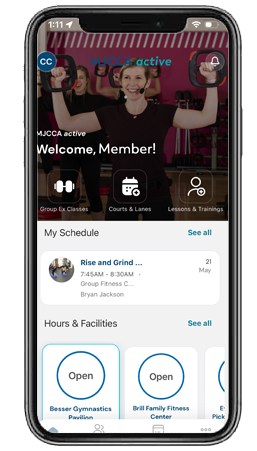
Use MJCCA active to:
Group Exercise Classes
Pickleball Courts
Tennis Courts
Pickleball Ball Machine
Tennis Ball Machine
Swim Lanes
Open Gym for Gymnastics
Personal Training
STOTT Pilates
Pickleball Lessons
Tennis Lessons
Volleyball Lessons
Basketball Training
Plus, get real-time updates on schedule changes, pool closures, and more!
Frequently Asked Questions
Using the App
How do I make a group exercise class reservation?
- Click the “Group Ex Classes” icon on the home page, “Reservations” from the footer, or “Group Ex Classes” from the “More” menu.
- Select a date. A list of classes offered on that date will appear.
- Select a class from the list. You can also search classes or use the filter button to filter by class type, instructor, or available start times.
- Click “Reserve.”
- A confirmation pop-up will appear with an option to add to calendar.
How do I schedule a lesson or training session?
- Click the “Lessons & Trainings” icon on the home page, “Reservations” from the footer, or “Lessons & Trainings” from the “More” menu.
- Click “Schedule.” Note: If you have not already purchased a lessons or trainings package, click “Purchase” and you will be directed to the MJCCA Registration & Payment Portal. Select a package and follow the steps. Once the purchase is complete, please allow up to 30 minutes before returning to MJCCA active to schedule.
- Click “View Trainers” to see a list of trainers.
- Click “Book” and request a trainer, date, and time.
How do I reserve a court or lane?
- Click the “Courts & Lanes” icon on the home page or “Courts & Lane” on the “More” menu.
- Select a date.
- Select a court or lane. You can also use the “All Locations” dropdown menu to filter by tennis courts, pickleball courts, or pool lanes.
- Select a reservation start time and duration.
- Click “Reserve” or, to book for another member on your account, click “Book for family”.
- A confirmation pop-up will appear with an option to add to calendar.
How do I purchase a lessons or trainings package?
- Click the “Lessons & Trainings” icon on the home page or “Lessons & Trainings” on the “More” menu.
- Click “Purchase” next to a lessons or trainings package. You will be directed to the MJCCA Registration & Payment Portal. Select a package and follow the steps. Once the purchase is complete, please allow up to 30 minutes before returning to MJCCA active to schedule.
Can I still cancel my reservations?
Yes. Go to your reservations or “My Schedule” section, select the reservation you want to change, and tap “Cancel.”
Can I make reservations for family members in the app?
- Yes. You can make a reservation for group exercise classes, courts, and lanes for anyone in your household. Note: if you want to make a group exercise class reservation for someone in your household, click on the class and the “Book for Family” icon will appear to the right of the “Reserve” button.
- However, if you are scheduling lessons or training sessions for someone other than yourself, please reach out to the coach or trainer by phone or email.
How do I rent and use a ball machine?
- Purchase a tennis or pickleball ball machine rental package in the MJCCA Registration & Payment Portal.
- To use the ball machine, reserve tennis court 1 or pickleball court 8. Note: First-time renters must set up an appointment for a brief machine tutorial by emailing [email protected] or [email protected].
How do I view my notifications?
- To view all notifications, click the bell icon in the top right corner of the screen.
- You will see a number next to the bell when new notifications appear.
General Questions
Why is the app being updated?
Our app partner Upace is pushing out an update to provide a faster, more reliable experience. The update includes a different look and feel, refreshed navigation, and the option to enable Face ID/Touch ID login.
Do I have to update the app?
Yes. The previous version will be phased out as of November 17, 2026. Anyone who logs into the old app after November 17 will receive an error message.
Is the updated app really faster?
Yes. You’ll notice improvements in loading times, booking speed, and overall navigation.
What other new features are included?
In addition to faster performance, the updated app includes improved search and filtering, an updated design, and a more intuitive interface.
Download & Installation
How do I update the app if I don’t have automatic updates turned on?
- iPhone users: Go directly to the app by visiting this link or open the App Store and search for “MJCCA active”, and tap “Update.”
- Android users: Go directly to the app by visiting this link or open Google Play Store and search for “MJCCA active”, and tap “Update.”
- Everyone will be prompted to log back in with your same email and password.
Note: if this is your first time ever logging in to MJCCA active:
- Tap First time login / Forgot password?
- Enter the email address associated with the MJCCA portal and tap Send PIN.
- Check your email for a pin number.
- Create your app password and enter your PIN to log in.
If you have trouble logging in or if your email address is not recognized, please call 678.812.4000.
I can’t find the app in the app store. What should I do?
Make sure you’re searching for “MJCCA active.”
Can I use the app on a tablet or iPad?
Yes! The app works on iPads and Android tablets as well.
Login & Account Access
What login credentials do I use when I update the app?
Use the same email and password you’ve always used to access the app. This hasn’t changed.
Note: if this is your first time ever logging in to MJCCA active:
- Tap First time login / Forgot password?
- Enter the email address associated with the MJCCA portal and tap Send PIN.
- Check your email for a pin number.
- Create your app password and enter your PIN to log in.
If you have trouble logging in or if your email address is not recognized, please call 678.812.4000.
I forgot my password. What do I do?
On the login screen, tap “Forgot Password.” You’ll receive instructions via email to reset your password. Or we can reset it for you.
I don’t remember the email I used with the app. How can I find it?
Your email is the same one you use for your MJCCA account. We can also look this up for you.
The app says my login credentials are incorrect. What’s wrong?
Double-check that you’re entering your email and password correctly (passwords are case-sensitive). If you’re still having trouble, use the “Forgot Password” feature or we can reset it for you.
What is Face ID login?
Face ID (on newer iPhones) allows you to log in securely without typing your password each time. After your first login, the app will ask if you want to enable this feature.
Is Face ID secure?
Yes. Face ID uses your device’s built-in security features. Your biometric data never leaves your device.
Do I have to use Face ID?
No, it’s optional. You can continue logging in with your email and password if you prefer.
Account Information & Data
Will my account information transfer to the updated app?
Yes. All your account information, class history, and upcoming reservations transfer automatically when you log in.
Will I lose my upcoming class reservations?
No. All your current and future reservations will appear in the updated app as soon as you log in.
Will my class history be saved?
Yes. Your complete class and activity history will be available in the updated app.
I don’t see my reservations in the updated app. What should I do?
First, confirm you’re logged into the correct account. If your reservations still don’t appear, log out and log back in. If the issue persists, please contact us.
Can I still access my account on a computer?
Yes. You can still access and make reservations through our website using any web browser.
Technical Issues
I updated the app and now it’s not working properly. What should I do?
Try logging out and back in. If that doesn’t work, delete the app and reinstall it. Your account information will still be there when you log back in.
Can I use the app without Wi-Fi?
Yes, the app works on both Wi-Fi and cellular data. However, you’ll need an internet connection to book classes, view schedules, or access your account.
Getting Help
Can staff help me update the app on my phone?
Absolutely. We’re ready to walk you through the update process and answer any questions you have. Stop by the front desk or contact us at [email protected] or 678.812.4000.
What if I prefer not to use a smartphone app?
You can still book classes and manage your reservations through our website on any computer or tablet browser. However, the mobile app provides the most convenient experience.
Reserve and schedule online in addition to the app!
Make reservations below or in the MJCCA active app! Reservations are required for group exercise classes, pickleball courts, tennis courts, and swim lanes and can be made at noon up to 7 days in advance. Swim lane reservations are required for both lap swim in the indoor and outdoor pools and free swim in the indoor pool and there will be two reservations in each lane per hour.
Note: You will still need to download and log in to MJCCA active. Group exercise class reservations can be cancelled up to when the class begins. Pickleball court reservations can be cancelled up to 6 hours before the reservation – a $20 fee will be assessed for reservations cancelled within 6 hours. All other cancellations must occur at least 24 hours prior to reservation. A no-show fee of $30 will be assessed for pickleball court reservations 30 minutes after the reservation start time. A no-show fee of $20 will be assessed for swim lane reservations 30 minutes after the reservation start time. Check in with a lifeguard at the indoor pool and scan in at the outdoor pool to avoid being charged a late fee.
Reserve a Group Exercise Class & See the Schedule
Reserve a Group Exercise Class
Make reservations below or in the MJCCA active app.
Group Exercise Class Schedule
Reserve a Pickleball Court & See the Calendar
Reserve a Pickleball Court
Make reservations below or in the MJCCA active app.
Pickleball Court Calendar
Reserve a Tennis Court & See the Calendar
Reserve a Tennis Court
Make reservations below or in the MJCCA active app.
Tennis Court Calendar
Reserve a Swim Lane
Reserve a Swim Lane
Make reservations below or in the MJCCA active app.